Creating a Single-Page Application
To create a single-page application involves five major steps—page creation, basic configuration, navigation configuration, canvas configuration, and linkage configuration. This article walks you through creating a single-page application from scratch and performing its basic configuration.
Before You Start
Before you create a single-page application, you need to:
Learn about what is a single-page application, see Single-Page Application Overview
Learn about the Basic Workflow for Building Single-Page Applications.
Creating a Single-Page Application
Enter the DTV Center and choose one of the following ways to create a single-page application:
Creating from the homepage
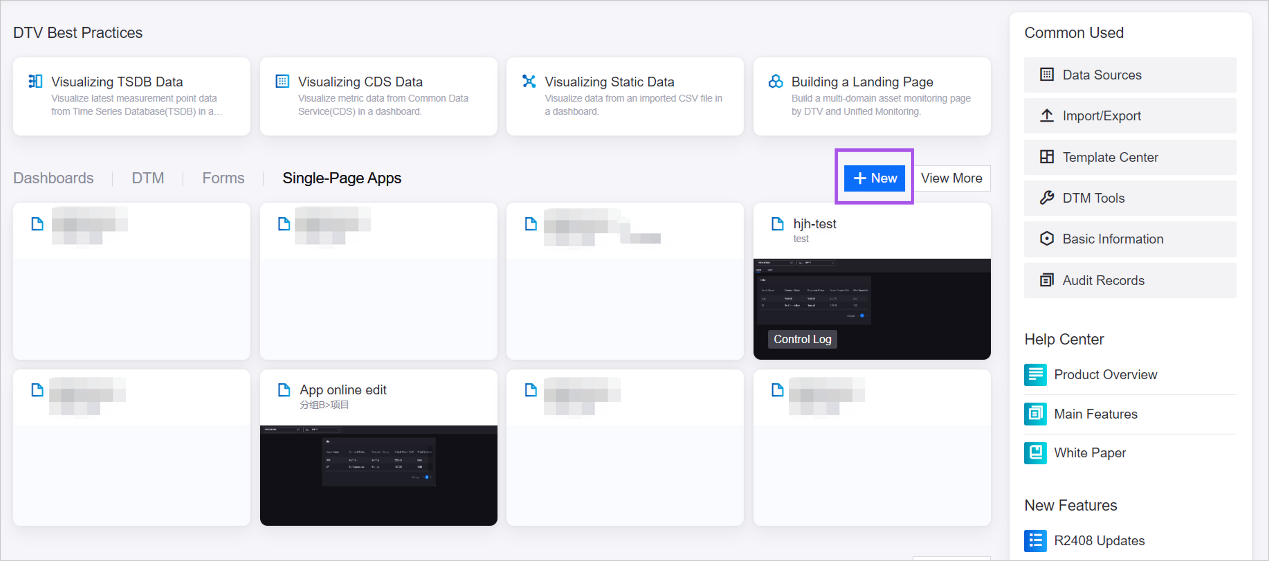
Go to the Single-Page Apps tab and select + New to create a new page.

Creating within a designated folder
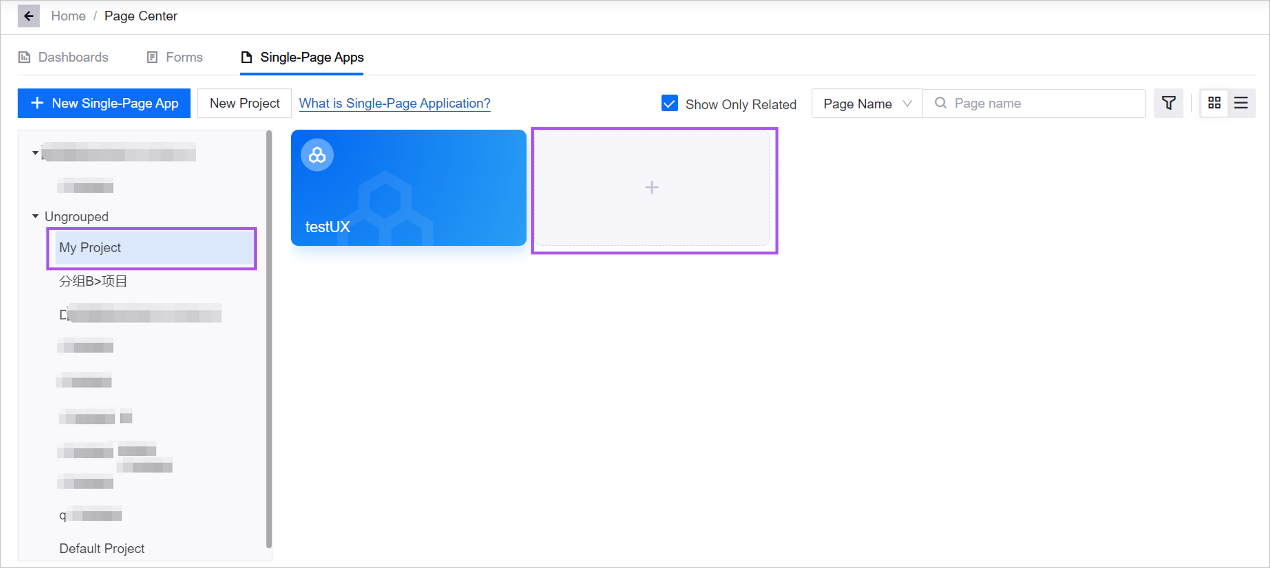
Select View More, and go to the Single-Page Apps tab.
Choose a folder from the folder list. Existing single-page applications in this folder will be shown on the right.
Select + to create a new page. You will then land on its Basic Configuration page.

Configuring Basic Information
After creating a single-page application, you will enter the Basic Configuration page, where you fill in basic information of the page, including:
Page Name
Assign a custom name for the newly created single-page application. It is for management purposes within the DTV Center and cannot be perceived by the users of the page.
Tag
Add existing tags to the page or create new tags. You can use tags to manage pages in bulk.
Belonged Group
Assign a group that the page belongs to. You can choose from groups within the permissions of your current account. Groups are used to control and manage user access. For more information, see Managing Groups.
Folder
Choose a folder that you have permission to from the dropdown menu, or you can create a new folder in the current group by selecting + Add. Folder is the access management unit in DTV. A folder may contain multiple single-page applications. For more information, see Managing Basic Info
Responsive Mode
Choose a mode that the page opens in. Responsive mode determines page proportion and the corresponding size of the canvases, layers, and widgets.
I18n Maintenance
After Basic Configuration, Navigation Configuration, and Canvas Configuration, you can select Export to download a template file, which contains all the fields that support internationalization, such as page name, widget name. Fill out the file and select Import to upload the file, adapting your page to various languages.
Enable Animation
When enabled, data in widgets such as dashboard, pie chart, and metric card on the canvas will display a dynamic effect of scrolling from 0 to the current value.
Enable Static Data
When enabled, a Static Data Entry Page will be generated upon publishing the single-page application. This page allows the application developer or end users to submit static data files to view the page with static data in runtime. In runtime, users can switch between static data and integrated data with the Integrated/Static toggle. Selecting Integrated will display data from the connected datasets, while selecting Static will show data from the submitted static data.
After enabling this feature, you need to select the default displayed data by choosing Static or Integrated from the dropdown menu.
Enable PDF Export
Enable PDF export and type in the default name of the exported PDF file. Once enabled, a PDF View button will appear on the configuration interface, allowing you to style the exported PDF file. The Export as PDF button will also appear on the runtime interface, enabling users to export the single-page application in PDF format to view the page offline.
Enable Minimum Page
When enabled, you can set a minimum size for the page in runtime to ensure the page presents as intended in various screen sizes. After enabling this feature, you need to specify the minimum width and height of the page.
Media Library
Select Manage Media Library to upload media files to be used in the single-page application, including icons, pictures, and background images. This will facilitate your access to media files during canvas and widget configuration.
Theme
Specify a color theme for the page. The theme will determine the base color of the canvas, navigators and the widgets on the page. You can modify the colors for the widgets during widget configuration.
Specify Datasets (Optional)
Specify the data source and datasets to be used in this single-page application to make them easily accessible when configuring navigators and widgets. This helps streamline your setup.
Specify Widget Templates (Optional)
Assign widget template folders available to this single-page application. Users of the page can only view and use the widget templates in the folders that you assigned. This is an optional step to control template visibility.
After finishing Basic Configuration, you can go on with the Navigation Configuration, to add and configure navigators on the page.
Learn More
You can also create a single-page application from the templates in DTV’s Template Center. For more information, see Create Single-Page Application from Templates.