Adding Filters
Dashboard pages provide global filters, widget filters, container filters, and chart internal filters. Users can add multiple filters to a dashboard page. If multiple filters filter the same data item, the filter applied last takes effect.
Prerequisites
Make sure a dashboard page has been created, or you have editing permission for an existing page. For more information, see DTV Page Permission Overview.
Adding a Global Filter
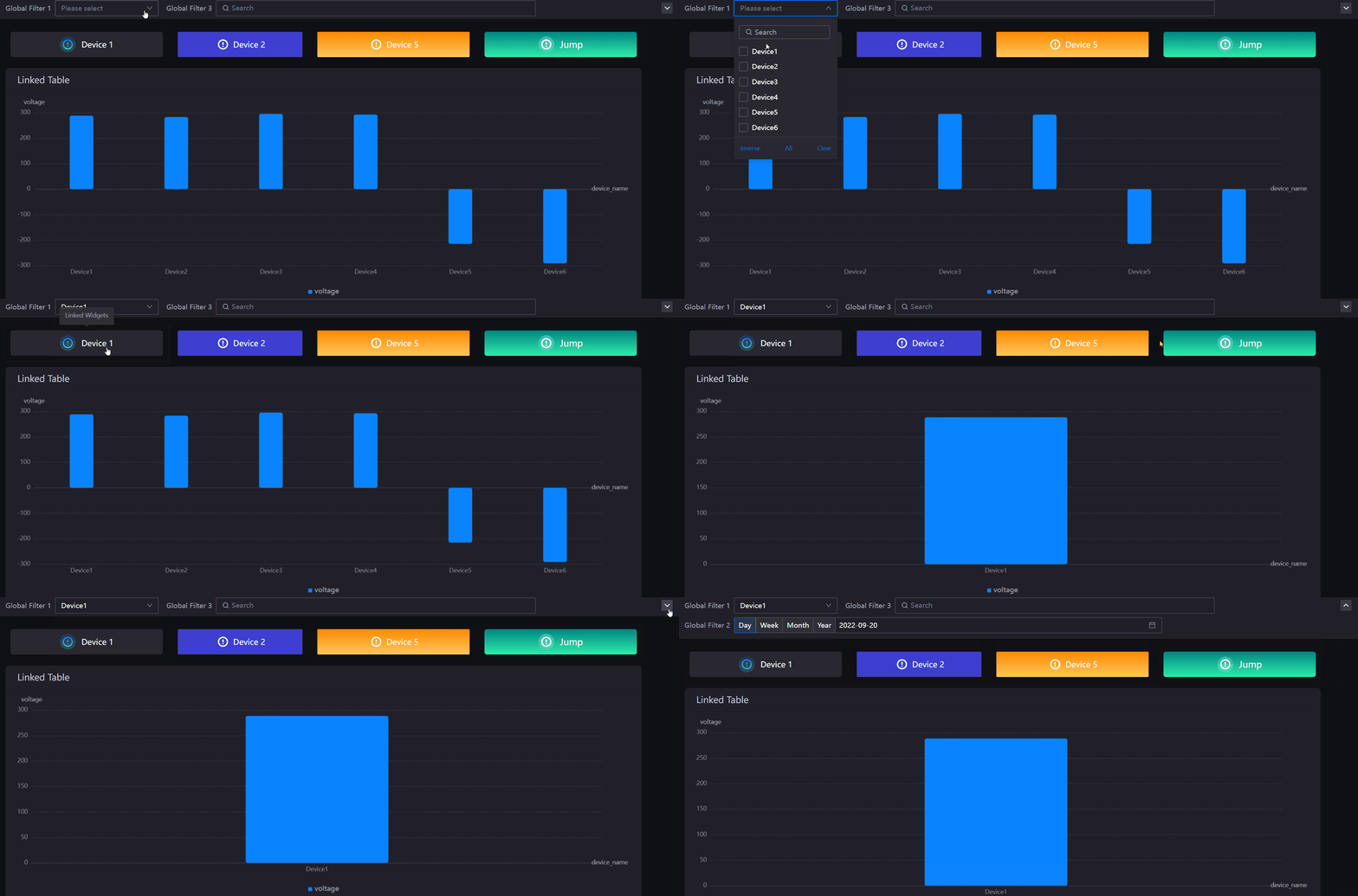
A global filter allows users to filter data across all widgets on the same page. Its position is fixed at the top of the dashboard page and cannot be adjusted.
Follow these steps to add a global filter:
In the Page Editor, move the mouse to Filters and select Global Filter.
In the Title box, specify a name for the global filter.
In the Key box, specify the name of the page parameter.
If you want to hide the filter title from the dashboard page, select the Hide Title checkbox.
If you want to enable filtering from the dashboard page, select the Visible on Pages checkbox.
If you want to pass filter values through the URL, select the Accepting External Parameters checkbox.
From the Filter Type list, select the global filter type to use.
In Filter Width, set the filter width ratio. If the total width of global filters in the same row exceeds 4 times, the extra filters will be collapsed.
In Linked Data Source, select the data source, dataset, and data field to filter, and the corresponding condition.
Under Widget Scope, select one of the two options:
Exclude: Select the widgets to exclude from the global filter.
Include: Select the widgets to include in the global filter.
Depending on the filter type, configure Field Options.
Select Save.
Note
Data fields prefixed with [P] are widget parameters. Users can dynamically adjust the value of the parameter by using a global filter. For more information, see Configuring Parameters for Dashboards.
Adding a Widget Filter
A widget filter allows users to filter data across multiple linked widgets on the same page. Users can select the relevant widgets to link to the widget filter. A widget filter added to the page can be repositioned on the page by dragging, just like a widget.
Follow these steps to add a widget filter:
In the Page Editor, move the mouse to Filters and select Widget Filter.
In the Title box, specify a name for the widget filter.
In the Key box, specify the unique key of the widget filter.
If you do not need to display the name of the widget filter, select the Hide Title checkbox.
In the Title Font field, configure the font of the title label.
In the Background Color field, select the background color of the widget filter.
From the Type list, select the widget filter type to use.
Depending on the filter type, configure Field Options.
In Linked Widget Field, select the widgets and data fields to filter, and the corresponding condition.
Select OK.
Note
Data fields prefixed with [P] are widget parameters. Users can dynamically adjust the value of the parameter by using a widget filter. For more information, see Configuring Parameters for Dashboards.
Adding a Container Filter
A container filter allows users to filter the tab and chart data within a container.
For more information, see Configuring Filter.
Adding a Chart Internal Filter
A chart internal filter allows users to filter data within a single chart based on specified conditions.
For more information, see Adding Chart Filters.
Filter Types
Filters on the dashboard can be categorized into several types based on the object and method of selection, as described below: