Measurement Point Alarm Conditions
A measurement point alarm condition is an alarm trigger condition set for a measurement point in a model. You can set a condition for the measurement point itself, or use the numerical relationship between the measurement point and a numerical attribute, or between the measurement point and another measurement point, as the condition. An alarm is triggered when the condition is met.
Note
Selectable measurement points and attributes are affected by the visualization group preconfigured for the corresponding asset type. These groups correspond to visualization groups of business objects in Common Data Service. Items configured in the group are displayed according to the group configuration. If a category is not configured in the group, all available items of that category are still displayed. If no visualization group is configured for the asset type or the group is empty, all available measurement points and attributes are displayed.
When setting alarm conditions for a measurement point, you can choose one of the following methods:
Configuration Method |
Description |
Example |
|---|---|---|
Set Threshold |
Select a measurement point and commonly used operators from the dropdown list to form an alarm condition. Configuration is simple and does not require writing formulas manually. |
|
Write Expression |
Select complex operators, measurement points, and time series functions, or enter custom values to form an alarm condition. Configuration is flexible and supports complex calculation logic. |
|
Set Threshold as Condition
When setting threshold as a condition, you can define the following information as needed.
Calculation Condition
The calculation condition for a measurement point contains the following information.
| Primary Condition | Operator | Benchmark Condition | Example |
|---|---|---|---|
| Select a site type, equipment type, or component type as the main asset type for triggering the alarm, then select one measurement point associated with the model for that asset type. The value of this measurement point will serve as the primary condition. Note: If an app developer has configured asset type tags for the current app in Application Management, the Asset Type drop-down list displays only the asset types under those tags. Otherwise, the list displays all asset types in the current OU. |
>, >=, =, <, <=, != | Enter a numerical value, or select another measurement point or attribute from the same model as the object to compare with. Only numerical attributes are supported. | When the "actual temperature" of "wind turbine" is >= the "maximum environmental temperature" of "wind turbine", an alarm is triggered. |
| ∈[min,max], ∈(min,max], ∈[min,max), ∈(min,max) | Enter the minimum and maximum values to define a range as the benchmark condition. | When the "actual temperature" of "wind turbine" is within the [45,50] range, an alarm is triggered. | |
| Report Frequency | No benchmark condition. An alarm is triggered when the reporting frequency of the measurement point meets the timing condition. | When the number of times "actual temperature" measurement point reports data within 5 minutes is less than 10, an alarm is triggered. | |
| Data Not Updated | No benchmark condition. An alarm is triggered when the data not updated time of the measurement point meets the timing condition. | When all data of "actual temperature" measurement point reported within 5 minutes are the same value, an alarm is triggered. | |
| Data Not Reported | No benchmark condition. An alarm is triggered when the data not reported time of the measurement point meets the timing condition. | When "actual temperature" measurement point reports no data within 5 minutes, an alarm is triggered. |
Timing Condition
If you enable the time series feature, it means that in addition to the calculation condition, the timing condition must also be met to trigger an alarm.
For example, suppose the calculation condition is set as A > B.
When the time series feature is disabled, an alarm is triggered whenever A is greater than B.
When the time series feature is enabled, an alarm is triggered only when A is greater than B more than X times within a period of time.
Refer to the following description to define the timing condition:

Number |
Description |
|---|---|
1 |
Currently only supports time series data from the tumbling window. |
2 |
The size of the tumbling window. Indicates the length of the time period for each data segment when data is sorted by time sequence. |
3 |
The number of times the condition is met within the window size. |
4 |
Operator, which represents the relationship between the number of times the condition is met and the benchmark count. |
5 |
Benchmark count. |
Note
When the benchmark condition is an attribute, timing conditions are not supported. Timing conditions are only applicable when the benchmark condition is a numerical value or another measurement point.
Add Multiple Conditions
When setting threshold for a measurement point, you can add multiple calculation conditions and define the AND and OR relationships between conditions.
If the time series feature is enabled, the timing condition will apply to all calculation conditions. All calculation conditions must be met simultaneously under the timing condition to trigger an alarm.
Write Expression as Condition
When writing expression as a condition, you can define the following information as needed.
Calculation Condition
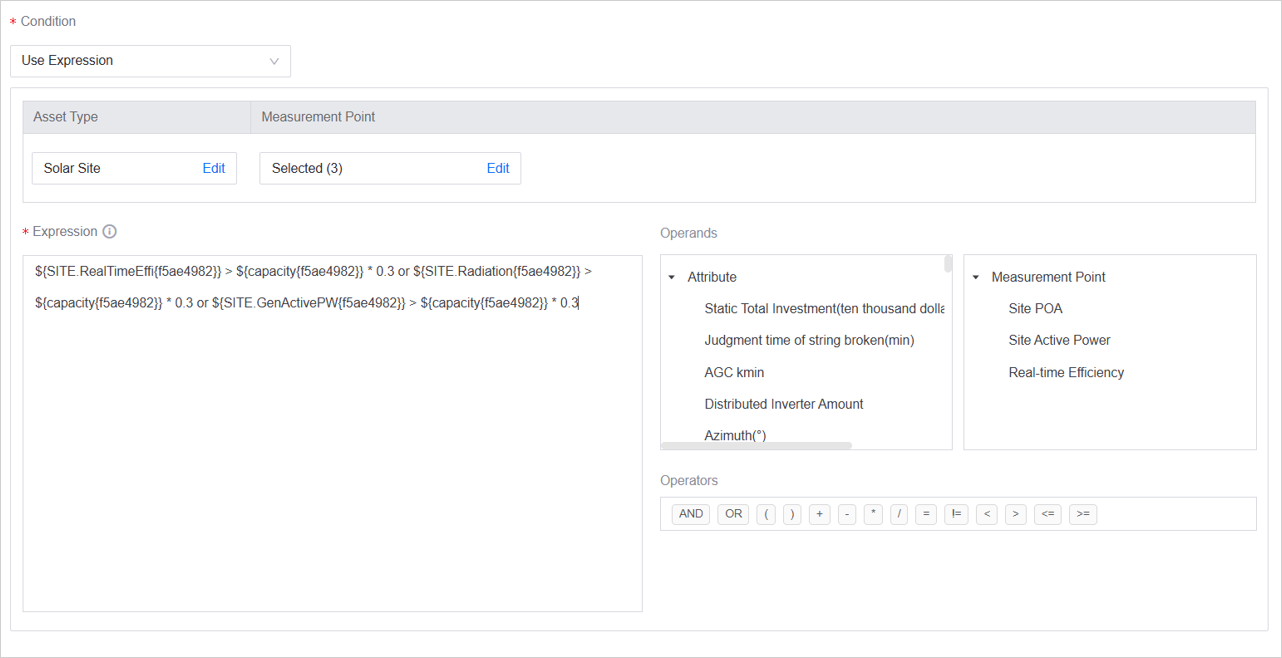
Refer to the following description to write the expression for the calculation condition:
Asset Type: Specify one asset type, which will limit the effective range of the alarm rule and the optional models. If an app developer has configured asset type tags for the current app in Application Management, the Asset Type drop-down list displays only the asset types under those tags. Otherwise, the list displays all asset types in the current OU.
Measurement Point: Select one or multiple measurement points from the model associated with the asset type as the main condition for calculation. You can select up to 5 measurement points. When selecting multiple measurement points, you cannot enable the time series feature and use time series functions.
Calculation Object: The numerical attributes in the model will be displayed in the Attribute list in the right-side calculation object panel. The selected measurement points will be displayed in the Measurement Point list. You can click these attributes and measurement points to add them to the expression area on the left for calculation. Repeated addition is supported.
Operator: Add operators to the expression area on the left to represent the relationship between calculation objects.
Expression: Continue editing the expression by entering custom values as needed.
Timing Condition
When you select only one measurement point, you can enable the time series feature to use time series functions in the expression. For information about time windows, see Timing Condition.
Note
When using time series functions, ensure that each attribute and measurement point added to the expression area uses a time series function. For example, the expression “MIN(A measurement point) > B attribute” does not meet the requirement because attribute B does not use a time series function. You can modify it to “MIN(A measurement point) > AVG(B attribute)”.
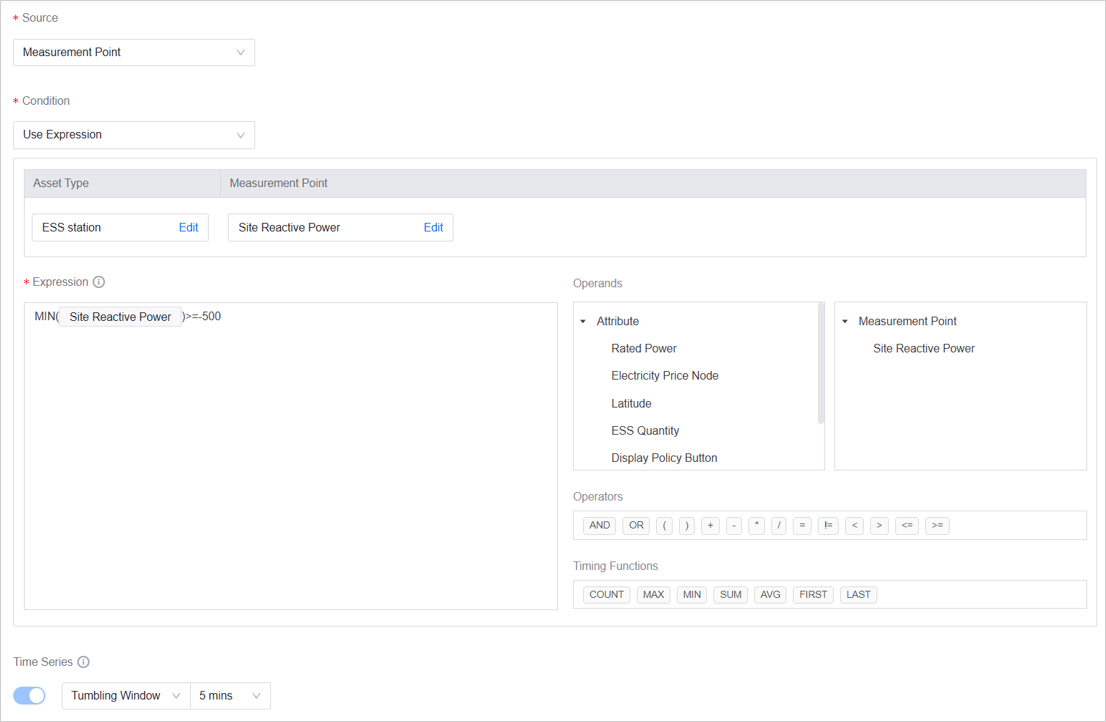
The supported time series functions are described as follows:
Time Series Function |
Description |
|---|---|
COUNT |
The number of times the condition is met within a time period. |
MAX |
The maximum value that meets the condition within a time period. |
MIN |
The minimum value that meets the condition within a time period. |
SUM |
The sum of values that meet the condition within a time period. |
AVG |
The average value that meets the condition within a time period. |
FIRST |
The first value that meets the condition within a time period. |
LAST |
The last value that meets the condition within a time period. |