Metric Alarm Conditions
A metric alarm condition refers to selecting a metric associated with a model, setting conditions for the metric data, and triggering an alarm once the metric data sent meets the condition.
Available Metric Range
Available metrics are from the Business Metric list in EnOS Common Data Service. According to different sources, the KPIs in EnOS Common Data Service can be classified into:
Business Metrics registered directly in EnOS Common Data Service.
Data Quality Metrics synchronized from EnOS Data Quality to EnOS Common Data Service.
All the above metrics in EnOS Common Data Service support metric alarm-condition configuration.
Note
The actual selectable metrics and attributes are affected by the visualization group preconfigured for the corresponding asset type. These groups correspond to visualization groups of business objects in Common Data Service. Items configured in the group are displayed according to the group configuration. If a category is not configured in the group, all available items of that category are still displayed. If no visualization group is configured for the asset type or the group is empty, all available metrics and attributes are displayed.
Metric Dimensions
Dimensions are from the Dimension Type list in EnOS Common Data Service. If a metric has multiple dimensions, you can specify a dimension and its value as the main condition. If you do not specify a dimension and its value, the alarm rule applies to the metric data of all dimensions.
For example, if you select the “Total Active Alarms” metric for the asset “Coal-Fired Power Plant”, the data returned by this metric may contain the following dimensions:
Device Type: Reflects the type of device where the alarm originates, with dimension values such as boilers, turbines, generators, etc.
Alarm Type: Reflects the nature of the alarm, with dimension values such as device failure, parameter out of range, system anomaly, etc.
Alarm Severity: Reflects the severity level of the alarm, with dimension values such as Fault, Warning, Info, etc.
Alarm Time Period: Reflects the time period when the alarm occurs, with dimension values such as night, day, etc.
When you specify “Device Type > Generator”, it means “the total number of active alarms generated by all generator device under the Coal-Fired Power Plant” will be set as the main condition. When you specify “Alarm Severity > Warning”, it means “the total number of active alarms of ‘Warning’ type from all device under the Coal-Fired Power Plant” will be set as the main condition.
Metric Time Interval and Range
The time interval and range of a metric are defined when the metric is registered. If a metric has multiple time intervals or time ranges, you need to select one as the data range for triggering the alarm.
Based on whether the time range is fixed, metrics can be divided into primary metrics and cumulative metrics.
Primary Metric: A general metric, such as “Power Generation”. When used as an alarm condition, you need to specify a time interval, which defines the period for data aggregation, and the aggregation result serves as the main condition. For example, “1 Day” means aggregating data daily, and “Total” means aggregating all available data within the time range. If left empty, the time interval is unrestricted and each metric data point will be calculated.
Cumulative Metric: A sub-metric of a primary metric, such as “Daily Power Generation”. When used as an alarm condition, it already has a default time range. For example, “Today” means the range is data from today, and “Latest” means the range is only the most recent value at the current moment. If left empty, the time range is unrestricted.
Time Interval
After specifying a time interval for a primary metric, Alarm Management will retrieve metric data according to the following logic to determine whether the conditions are met.
Time Interval |
Description |
|---|---|
1 Hour |
Retrieves the sum of data within each 1-hour period. |
1 Day |
Retrieves the sum of data within each 1-day period. |
1 Week |
Retrieves the sum of data within each 1-week period. |
1 Month |
Retrieves the sum of data within each 1-month period. |
1 Year |
Retrieves the sum of data within each 1-year period. |
For example, if you set the time interval to “1 Day” for the “Total Active Alarms” metric of a coal-fired power plant, it means that if the sum of active alarms for any day in the power plant meets the condition, an alarm will be triggered. The alarm data is aggregated only once per day. Even if the condition is met at 10:00 on that day, the alarm is triggered only after the data is sent at the end of the day (e.g., 00:20).
Time Range
Cumulative metrics have a default time interval. Alarm Management retrieves metric data according to the following logic to determine whether the condition is met.
Time Range |
Description |
|---|---|
Today |
Retrieves data once every 1 hour, obtaining hourly data from 00:00 to the current time of the current day. |
This Month |
Retrieves data once every 1 day, obtaining daily data from the 1st day of the month at 00:00 to the current time. |
This Year |
Retrieves data once every 1 month, obtaining monthly data from January 1st of the year at 00:00 to the current time. |
Historical Total |
Retrieves data once every 1 hour, obtaining hourly data from the entire lifecycle. |
Latest Value |
Retrieves real-time data at the current moment once every 30 minutes. |
For example, if the time range for the “Total Active Alarms” metric of a coal-fired power plant is set to “Today”, it means that if the sum of active alarms for the current day in the power plant meets the condition at any moment, an alarm will be triggered immediately. At 10:00, the system can obtain the sum of alarms from 00:00 to 10:00 of the current day. If at 10:00 the sum exceeds the set threshold, the alarm is triggered immediately at 10:00.
Data Quality Metrics
Data Quality metrics include four types of metrics: Completeness, Coverage, Validity, and Timeliness. After creating quality assessment rules for a model in Data Quality, you can select these 4 metrics in the metric list of Alarm Management as the main condition for triggering alarms.
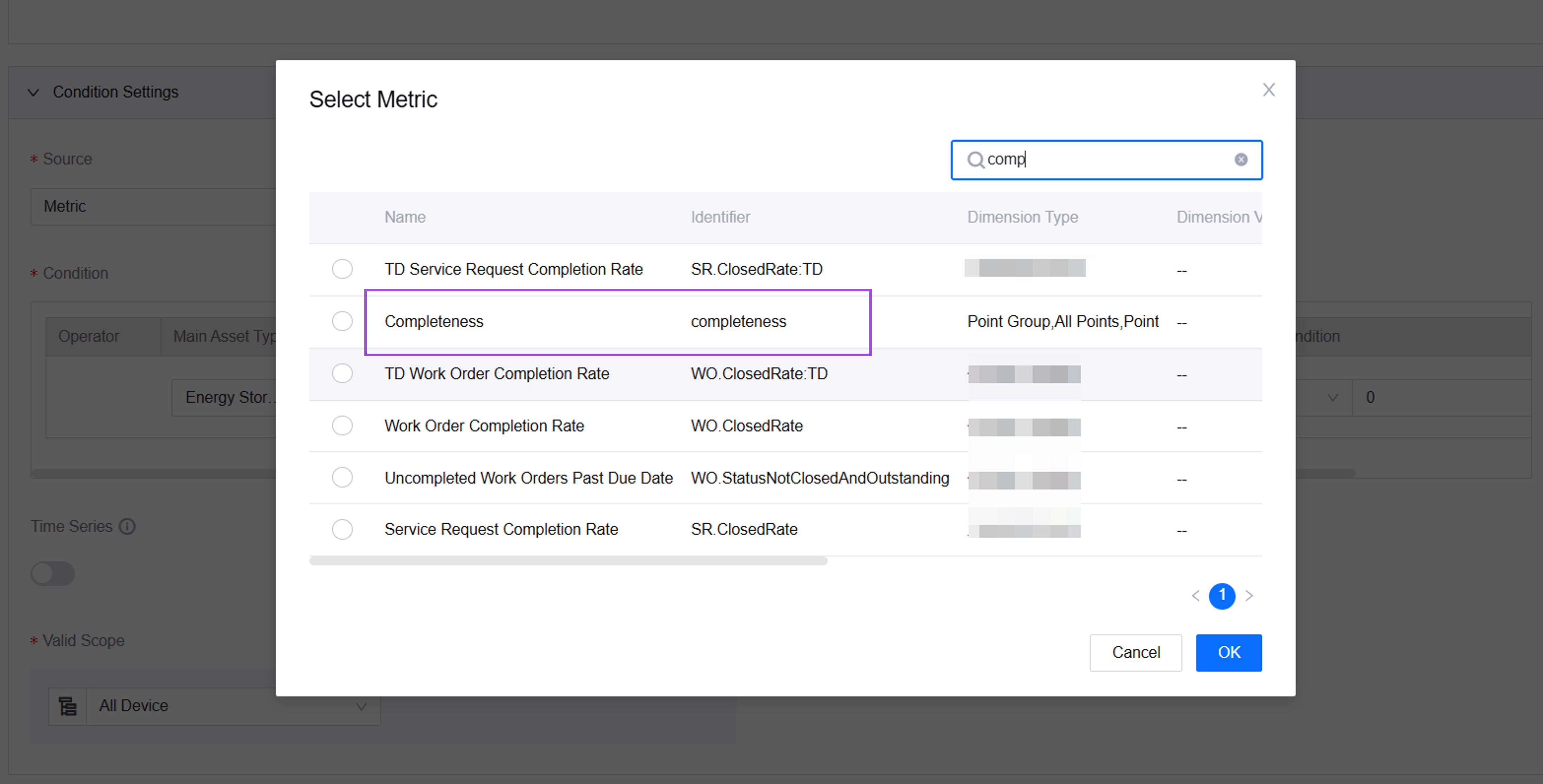
The dimensions for Data Quality metrics are also from the dimension type list in EnOS Common Data Service. They typically include the following types:
All Measurement Points: Data from all measurement points in the current model.
Measurement Point Group: Data from measurement points included in a monitoring group defined in Data Quality. Specify a particular measurement point group in the dimension value.
Measurement Point: Specify a particular measurement point in the dimension value.
If no monitoring objects are defined for individual measurement points or measurement point groups for this model in Data Quality, you cannot select “Measurement Point” and “Measurement Point Group”.
For example, if you select the “Completeness” metric, choose “Measurement Point” for the dimension type, and select “Active Alarms” as the dimension value, it means that when the completeness of “Active Alarms” measurement point data in the model meets the condition, an alarm will be triggered.
Metric Calculation Condition
A metric calculation condition consists of the following:
Main Condition: Specify an asset type and select one metric data from the model associated with this asset type as the main condition. If an app developer has configured asset type tags for the current app in Application Management, the Asset Type drop-down list displays only the asset types under those tags. Otherwise, the list displays all asset types in the current OU.
Operator: Represents the relationship between the main condition and the benchmark condition. When this relationship is satisfied, an alarm will be triggered.
Benchmark Condition: Enter a custom numerical value or select a numerical attribute from the same asset model to compare with the main condition.
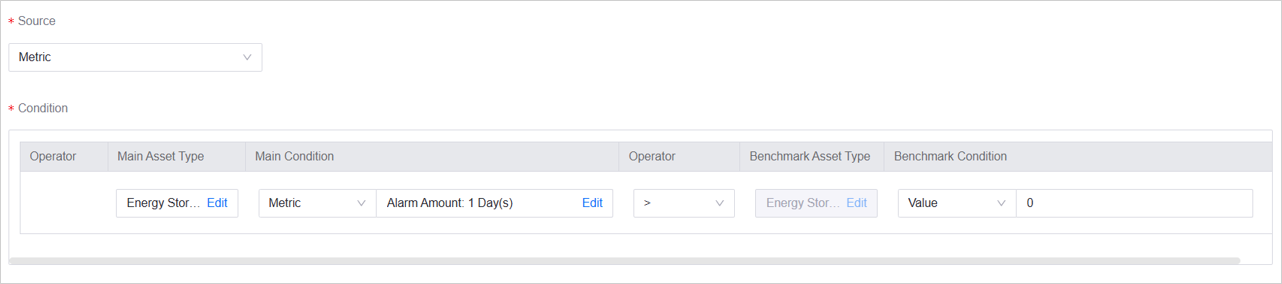
The diagram above shows that for CDA Flow Meter devices, when the completeness rate of all metric data sent daily is less than or equal to 80%, an alarm will be triggered.
Attribute as Benchmark Condition
When configuring metric alarm rules, you can select numerical attributes (such as INTEGER, DOUBLE, FLOAT data types) from the asset model as the benchmark condition to compare with the metric value.
How to select an attribute:
In condition configuration, first select an asset type (such as site, device, or component type).
Then select an asset model associated with this asset type (such as a specific device model).
Finally, select one numerical attribute from this model as the benchmark condition.
How attribute values are retrieved:
The system uses the attribute value updated within the last 24 hours of the asset as the benchmark condition for comparison.
Example:
When the “actual power” metric of a wind turbine is greater than the “rated power” attribute of the wind turbine model, an alarm is triggered.
Metric Timing Condition
In addition to calculation conditions, you can also set timing conditions for alarm rules. For information about time windows, see Timing Condition.
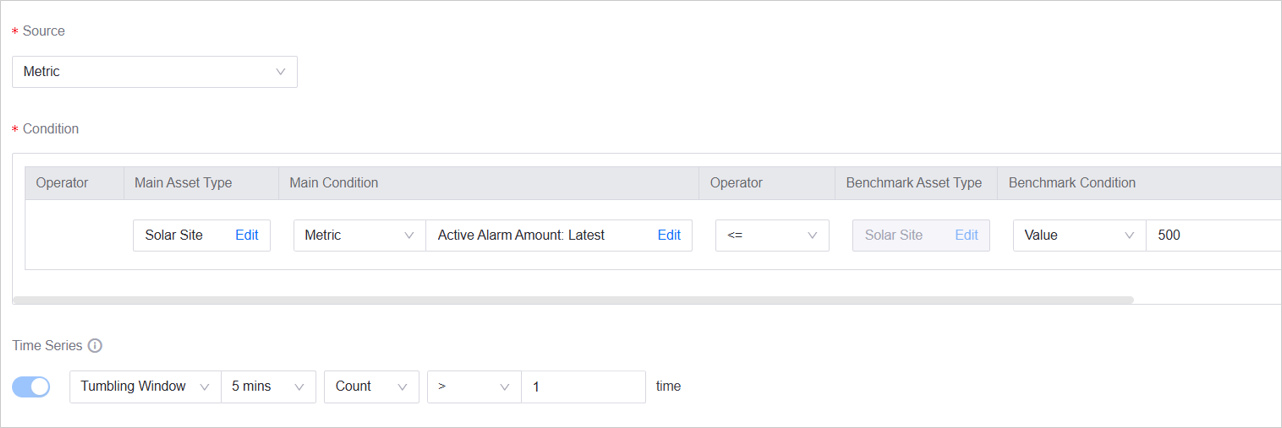
The diagram above shows that for CDA Flow Meter devices, when the number of times that the newly created service requests in every 60-minute period is greater than or equal to 10 exceeds 1 time, an alarm will be triggered.
Note
When the benchmark condition is an attribute, timing conditions are not supported. Timing conditions are only applicable when the benchmark condition is a numerical value.