Unit 2: Configuring Alert Settings and Simulating Data Transmission
After the smart electric meter is registered on the EnOS Management Console, you can connect the device and report simulated device data to EnOS Cloud. Subsequently, you can configure alerts to monitor the temperature value of the smart meter.
Step 1: Configuring Alert Settings
The Connecting a Simulated Device into EnOS tutorial describes detailed steps for configuring alert settings for a device. Follow the same steps to configure alert setting for the temperature value of the smart electric meter.

When the alert rule is saved, it will run and monitor the temperature value of the electric meter. As soon as the temperature data exceeds the specified limit, the alert rule will be triggered, and an alert record will be generated.
Simulating Device Data
The Connecting a Smart Device to EnOS section shows the steps for connecting a smart device to EnOS and simulating device data with the Device SDK for MQTT. Follow the same steps to report the simulated temperature data of the electric meter to EnOS Cloud. The following code sample is for your reference:
import com.envisioniot.enos.iot_mqtt_sdk.core.IConnectCallback;
import com.envisioniot.enos.iot_mqtt_sdk.core.MqttClient;
import com.envisioniot.enos.iot_mqtt_sdk.core.exception.EnvisionException;
import com.envisioniot.enos.iot_mqtt_sdk.message.upstream.tsl.MeasurepointPostRequest;
import com.envisioniot.enos.iot_mqtt_sdk.sample.SimpleSendReceive;

import java.util.Random;

public class demo1 {
    public static final String url = "tcp://{HOST}:{PORT}";
    public static final String productKey = "{Product_Key}";
    public static final String deviceKey = "{Device_Key}";
    public static final String deviceSecret = "{Device_Secret}";
    private static MqttClient client;
    private static volatile boolean subDeviceLogined = false;
    private static Random random = new Random();
    private static int idInc = 20;
    private static final char[] HEX_CHAR = new char[]{'0', '1', '2', '3', '4', '5', '6', '7', '8', '9', 'a', 'b', 'c', 'd', 'e', 'f'};

    public demo1() {
    }

    public static void main(String[] args) throws Exception {
        initWithCallback();
        postMeasurepoint();
        alwaysPostMeasurepoint();
    }

    public static void initWithCallback() {
        System.out.println("start connect with callback ... ");

        try {
            client = new MqttClient(url, productKey, deviceKey, deviceSecret);
            client.getProfile().setConnectionTimeout(60).setAutoReconnect(false);
            client.connect(new IConnectCallback() {
                public void onConnectSuccess() {
                    SimpleSendReceive.subDeviceLogin();
                    System.out.println("connect success");
                }

                public void onConnectLost() {
                    System.out.println("onConnectLost");
                }

                public void onConnectFailed(int reasonCode) {
                    System.out.println("onConnectFailed : " + reasonCode);
                }
            });
        } catch (EnvisionException var1) {
        }

        System.out.println("connect result :" + client.isConnected());
    }

    public static void postMeasurepoint() {
        Random random = new Random();
        System.out.println("start post measurepoint ...");
        MeasurepointPostRequest request = (MeasurepointPostRequest)MeasurepointPostRequest.builder().addMeasurePoint("Temperature", random.nextFloat()).build();

        try {
            client.fastPublish(request);
            System.out.println(" post measurepoint success...");
        } catch (Exception var3) {
            var3.printStackTrace();
        }
    }

    public static void alwaysPostMeasurepoint() throws Exception {
        while(true) {
            long ts = System.currentTimeMillis();
            postMeasurepoint();
            System.out.println(client.isConnected() + " post  cost " + (System.currentTimeMillis() - ts) + " millis");
            Thread.sleep(10000L);
        }
    }
}
In this example:
The variables
HOSTandPORTof the EnOS server will vary with the cloud region and instance. For private cloud instances, contact your Envision project manager or support representative to get the host and port information.The variables
productKey,deviceKey, anddeviceSecretare the triple attributes of the registered Demo_meter device, which can be found on the EnOS Management Console.Randomly simulated values of the Temperature measurement point will be uploaded to EnOS Cloud every 10 seconds.
When the device is connected, you can check the device status through the Asset Management > Device Asset page.

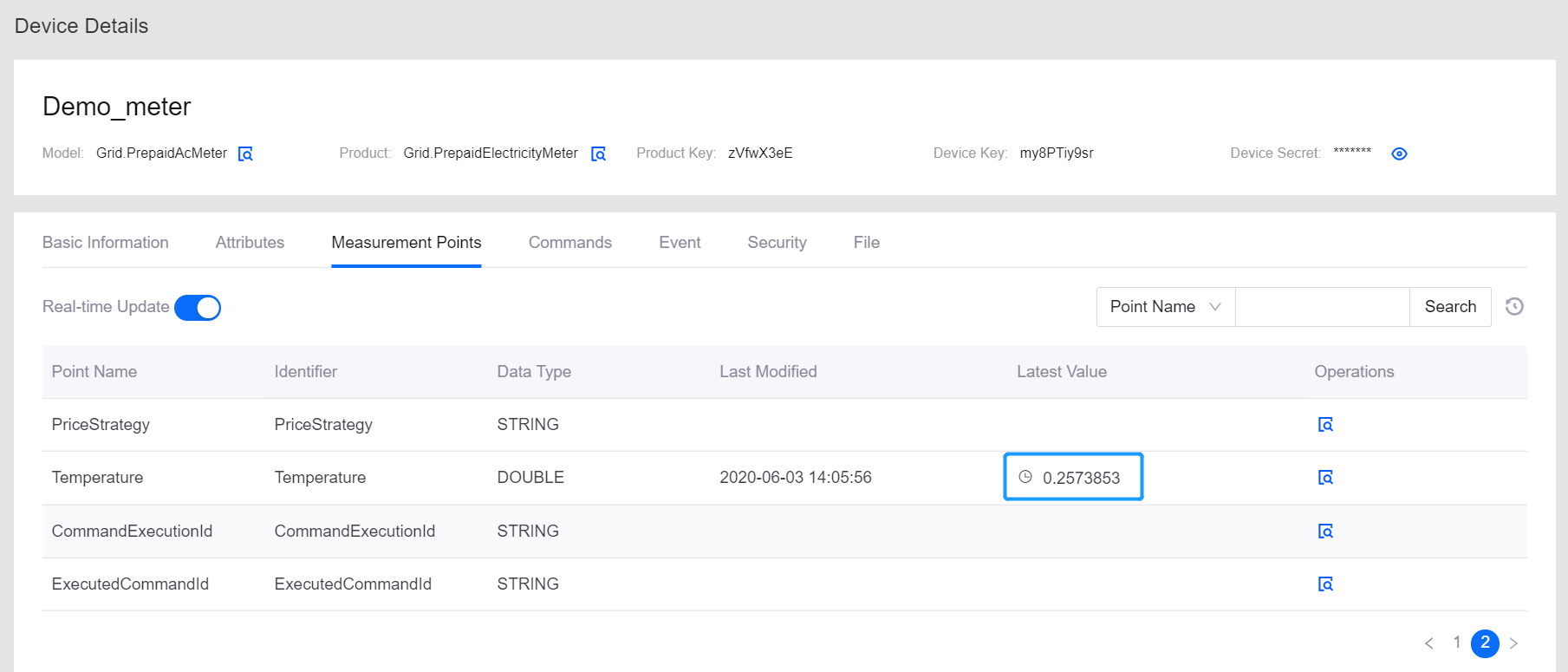
When simulated data is uploaded to EnOS Cloud, you can view the uploaded data on the Device Details page.