Unit 3: Configuring Data Subscription Jobs
To subscribe to the real-time measurement point data and alert records of the electric meter, you need to configure data subscription jobs on the EnOS Management Console first. For more information about the features of the Data Subscription service, see Data Subscription Overview.
Follow the steps below to configure data subscription jobs for the device real-time data and alert records separately.
Subscribing to Real-Time Data
Take the following steps to configure a subscription job for the real-time measuring point data of the electric meter:
Log in to the EnOS Management Console and select Data Subscription > New Subscription.
Configure the subscription job with the following settings.
Item |
Value |
|---|---|
Type |
Select “Time Series Data Subscription”. |
ID |
Enter an ID for the subscription job, for example “sub-001”. |
SA |
Select your application service account from the drop-down list. |
Message Channel |
Select the Real-Time message channel. |
Description |
Enter a short description for the subscription job. |
Clients |
Select the customers whose data are to be subscribed to (typically your own organization). |
Model Filter |
Select the Grid.TopupAcMeter model and the Temperature measuring point for this tutorial. |
3. Click Save to complete the configuration.
See the following example of the created data subscription job.
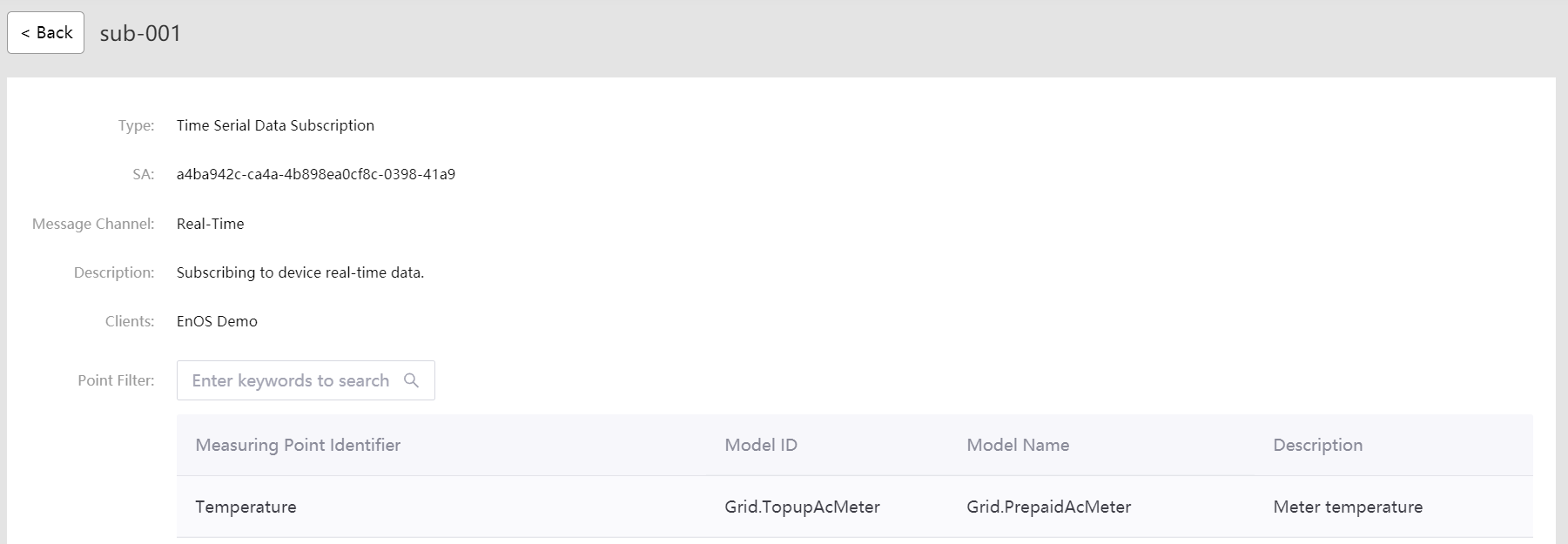
For detailed information about configuring subscription jobs for real-time data, see Subscribing to Real-time Data.
Subscribing to Alert Records
Configure a subscription job for the alerts on the electric meter with the following steps.
Log in to the EnOS Management Console and select Data Subscription > New Subscription.
Configure the subscription job with the following settings:
Item |
Value |
|---|---|
Type |
Select “Alert Data Subscription”. |
ID |
Enter an ID for the subscription job, for example “sub-002”. |
SA |
Select your application service account from the drop-down list. |
Description |
Enter a short description for the subscription job. |
Clients |
Select the clients with the data you want subscribe to (typically your own organization). |
Model Filter |
Select the Grid.TopupAcMeter model for this tutorial. |
3. Click Save to complete the configuration.
See the following example of the created alert subscription job.
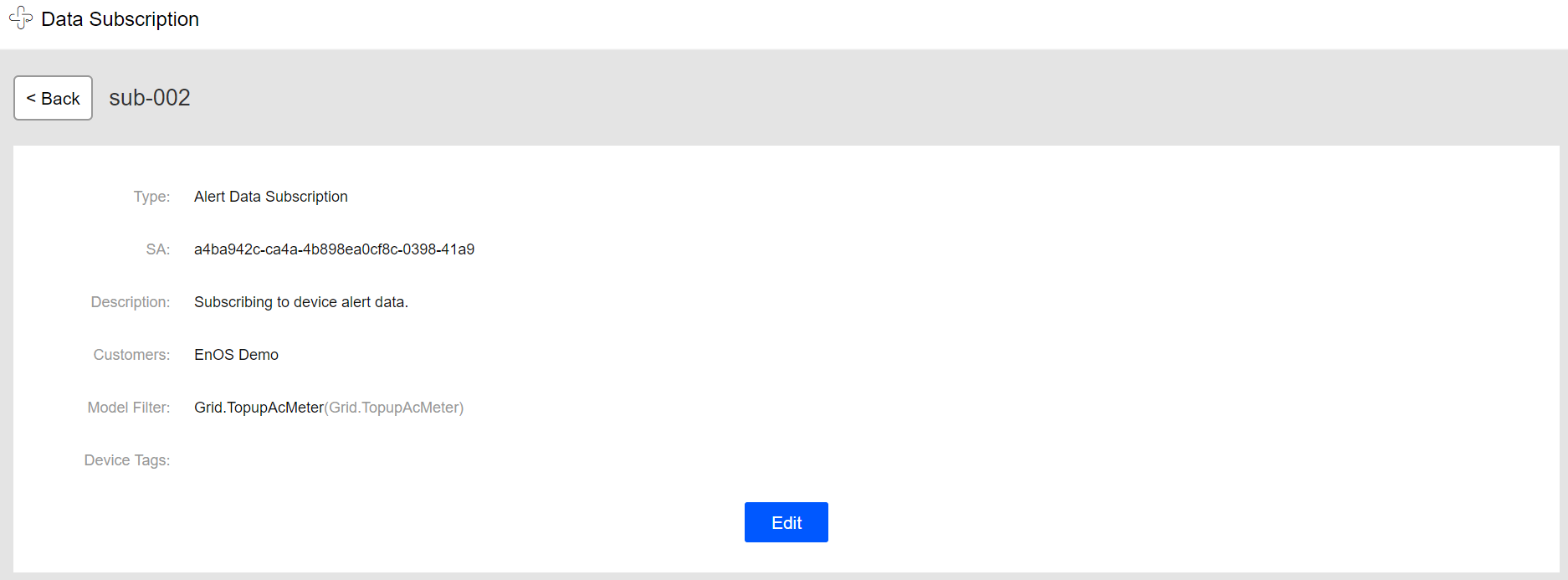
For detailed information about configuring subscription jobs for alert records, see Subscribing to Alert Data.
Authorizing the Application Service Account
The application service account (SA) associated with the data subscription jobs must be authorized to access the asset data and alert records. Otherwise, the data subscription jobs will fail because of authentication failure. Follow the steps below to authorize the application SA.
Log in to the EnOS Management Console with the administrator account and select Identity and Access Management > Policy.
Click New Policy, enter the policy name and description, and click Next.
Under the EnOS Services tab, click New Rule, and select Asset from the Service drop-down list.
For All Assets, select
control,read, andwritepermission, and click Save to save the authorization policy.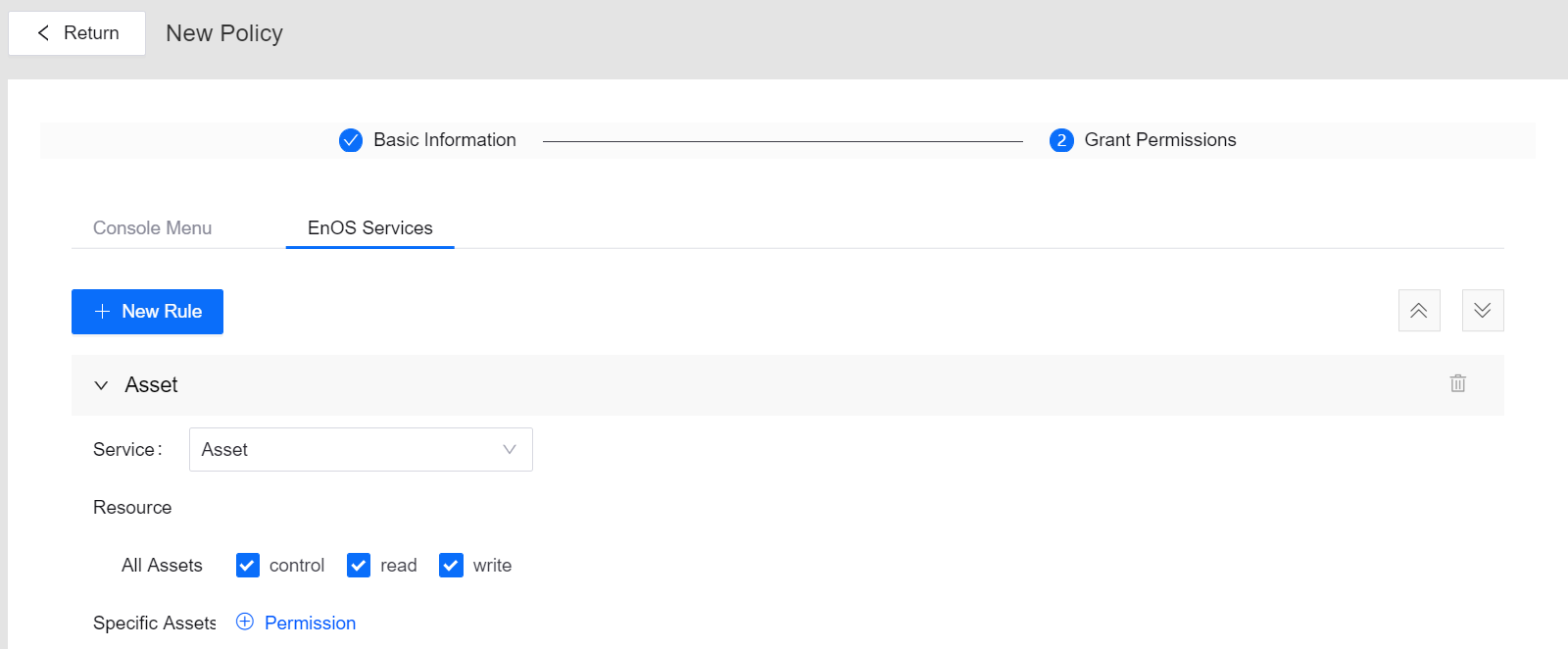
Select Identity and Access Management > Service Account, find your application from the list, and click the Authorize icon from the Operation column.
On the Authorize page, click Assign Policies, select the created authorization policy, and click Save.
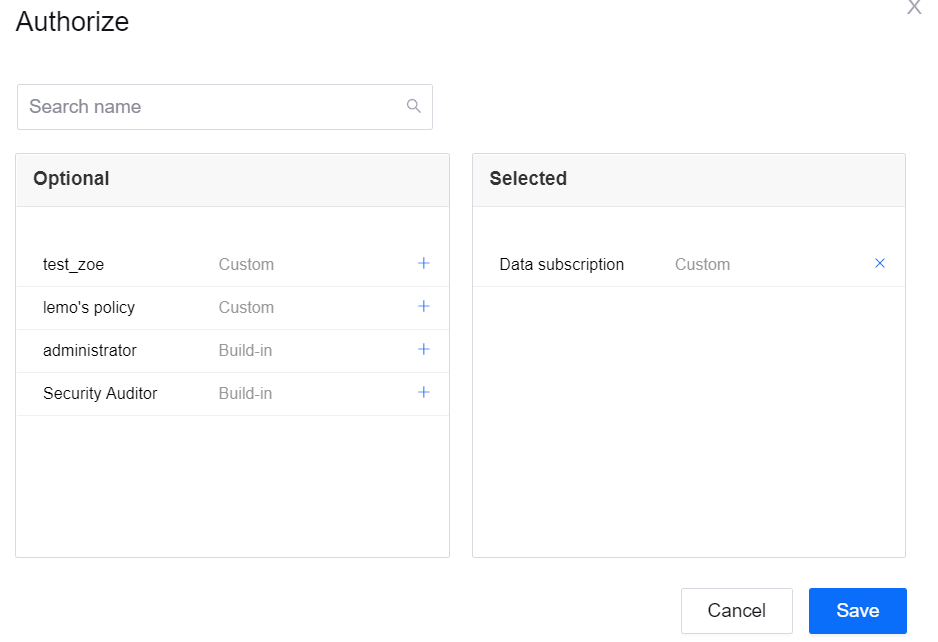
After authorizing the application service account with asset access permission, you can enable the data subscription jobs. For detailed information about authorizing the service account, see Managing Service Accounts.
Enabling the subscription jobs
When the configuration of the subscription jobs is saved, you can enable the jobs by clicking the Enable icon in the Operations column of the subscription job list.

Once the subscription jobs are enabled, the data subscription service will be running to filter device data and alert data according to the settings.