Unit 4: Developing Stream Data Processing Jobs
After the storage policies are configured for the smart electric meter measurement points and the data is uploaded to EnOS, you can develop data processing jobs for the uploaded data. The EnOS Stream Processing Service helps to meet the real-time data processing requirements of devices and assets and provides visualized template-based configurations to help you quickly develop stream data processing jobs and monitor the running status of the jobs.
Creating Data Processing Jobs
The EnOS Stream Processing Service enables you to create data processing jobs and import the configuration file of existing jobs. Follow the steps below to create data processing jobs for the electric meter data.
Log in to the EnOS Management Console and click Stream Data Processing* > Stream Development.
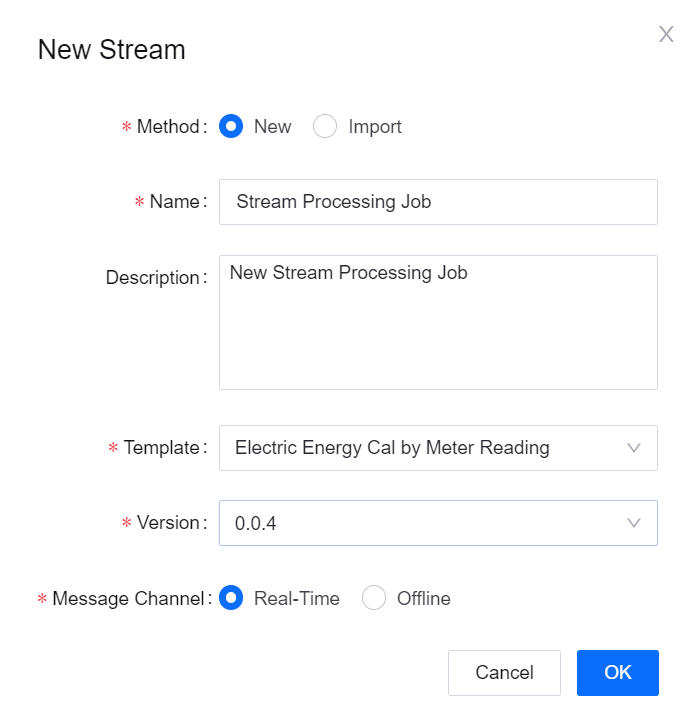
Click the + icon above the stream processing job list to open the New Stream window. Enter the name and description of the stream processing job and select a template.
Time Window Aggregation: For getting the maximum and minimum values of the meter reading data every 10 minutes.
Multi-Point Merging: For getting the difference between the maximum and minimum values of the meter reading data every 10 minutes.
Configuring Data Processing Jobs
The EnOS Stream Processing Service provides several templates for processing stream data. For this tutorial, configure 2 data processing jobs using the Time Window Aggregation and Multi-Point Merging templates.
Job for Getting the Max/Min Values of a Measurement Point
In this step, use the Time Window Aggregation template to create a data processing job for processing the data of the Reading measurement point and assigning the processed data to another measurement point.
Complete the following configuration for the stream data processing job.
Field |
Value |
Description |
|---|---|---|
Window Type |
Tumbling Window |
The time window for processing data, which has a fixed size and does not overlap. |
Latency Setting |
1 day |
The allowed lateness for late data. 0 second indicates that late data will be ignored. |
Input Point |
Reading |
The measurement point providing the raw data. |
Threshold |
[0, 100) |
The threshold filtering the valid data value. |
Interpolation |
Ignore |
The interpolation algorithm that is used to process the input data that exceeds the threshold. |
Aggregation |
max / min |
Get the maximum / minimum value of the meter reading data. |
Window Size |
10 minutes |
The size of each time window for processing data. |
Output Point |
MaxReading10Min / MinReading10Min |
The measurement points receiving the processed data. |
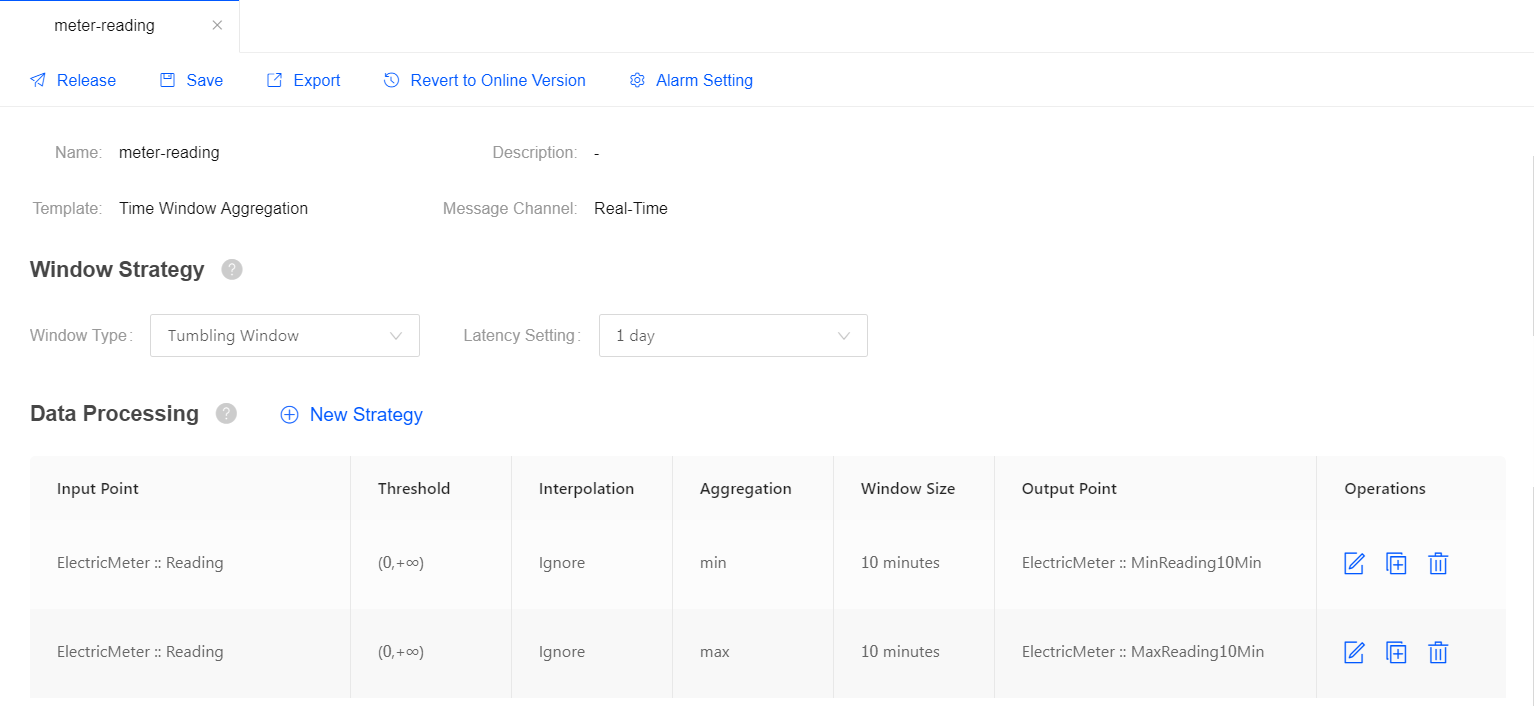
For more information about the Time Window Aggregation template, see Configuring a Time Window Data Aggregation Job.
Job for Getting the Difference Between Measurement Points
In this step, use the Multi-Point Merging template to create a data processing job for getting the difference between 2 measurement points and assigning the processed data to another measurement point.
Complete the following configuration for the stream data processing job.
Field |
Value |
Description |
|---|---|---|
Triggering Mode |
Frequency |
The data processing job is triggered by the specified frequency. |
Triggering Frequency |
10 minutes |
The data processing job will run every 10 minutes. |
Output Point |
ReadingDifference |
The measurement point receiving the processed data. |
Output Logic |
|
The expression for getting the difference between the values of the 2 measurement points. |
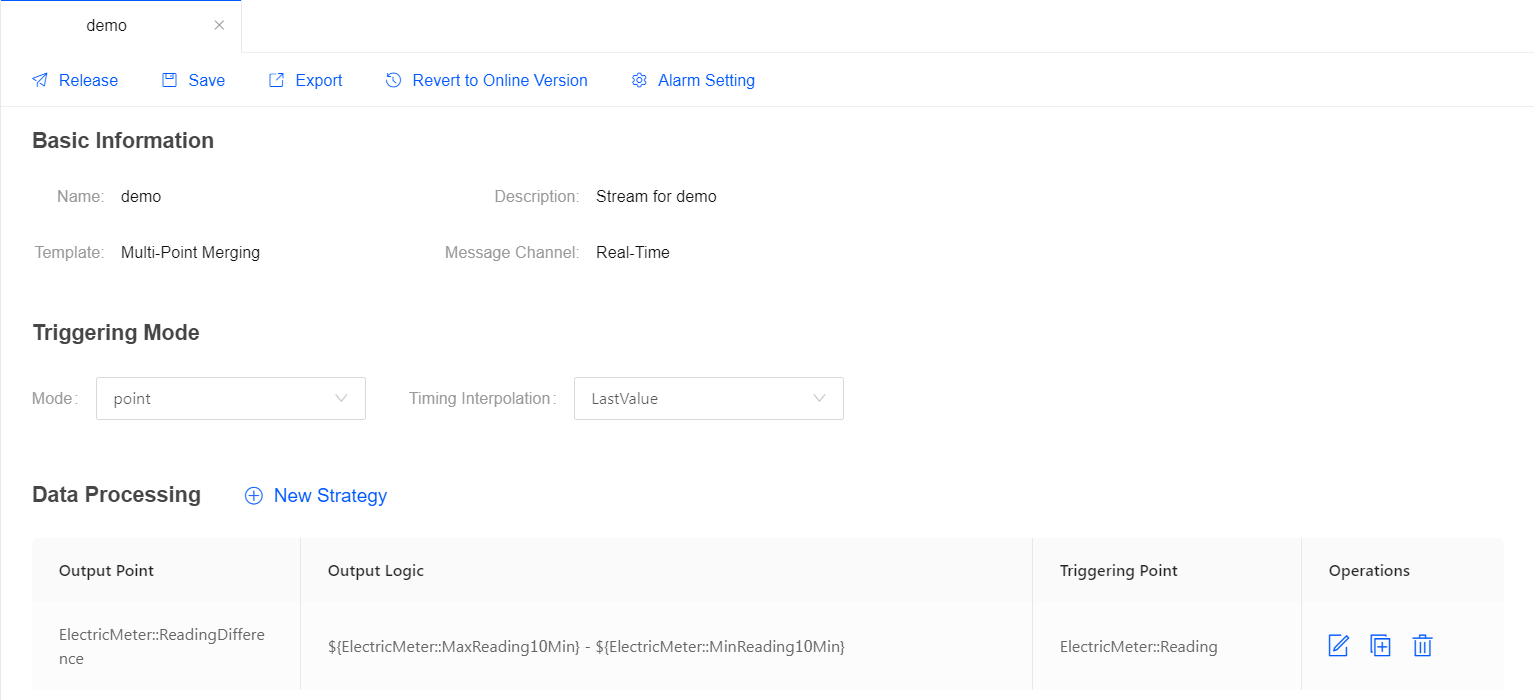
For more information about the Multi-Point Merging template, see Configuring a Multi-Point Data Calculation Job.
Starting the Data Processing Jobs
After the data processing job configuration is completed, you can publish it online.
Click Save to save the configuration of the data processing job.
Click Release to release the job online.
On the Stream Operation page, find the data processing job that is online, and then click the the Start icon
 to start the job.
The data processing job will start running if there is no error.
Viewing the Job Running Status
On the Stream Operation page, find the running data processing job in the table, and click the job name to open the Stream Details page. You can view the following information about the job.
Summary: View the summary of the running stream, such as the overall data processing records and the data aggregation records for a specific period.
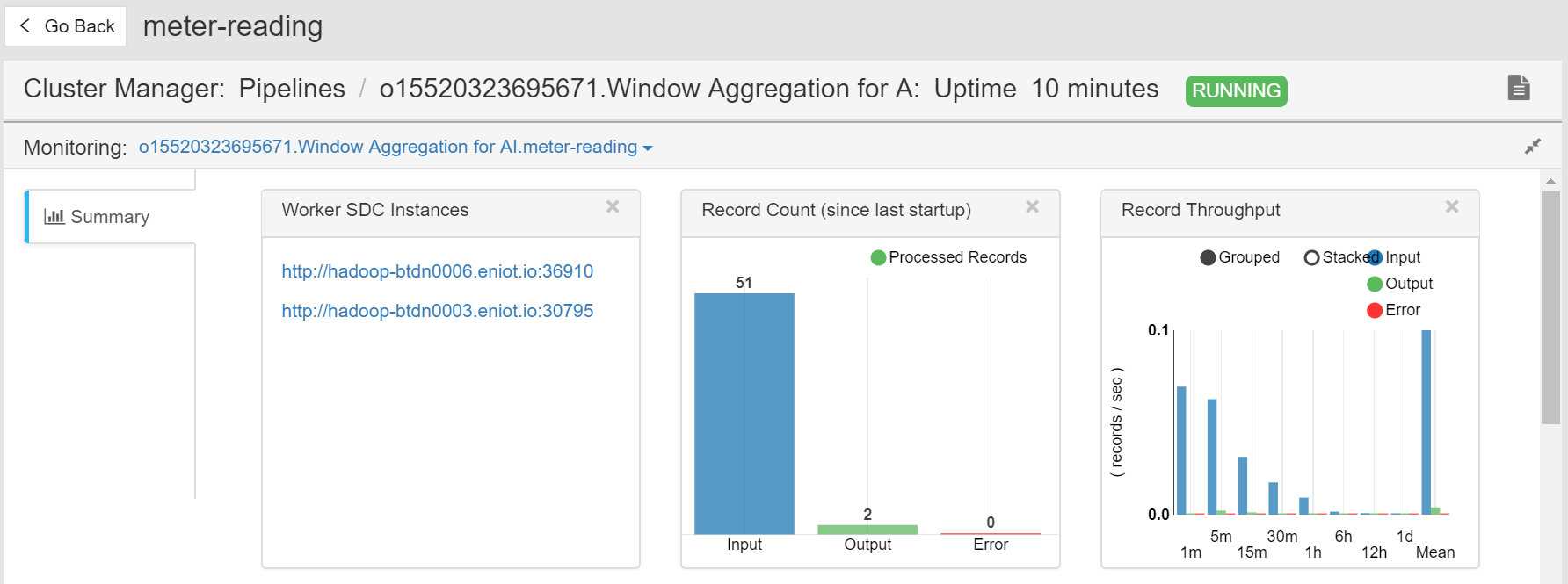
Log: Click the View Logs icon on the upper right corner to check the running log of the job.
Results: The processed data will be stored in TSDB according to the configured storage policy.