Unit 2: Configuring the Storage Policy for the Device Data
The EnOS Time Series Database (TSDB) enables you to store important and frequently-accessed business data with a variety of data storage options. Data is categorised (by data types and storage time) and stored in TSDB, which helps to reduce data storage costs and enhance data reading efficiency.
Before the data of the electric meter is uploaded to EnOS Cloud, you need to configure the data storage policy for the uploaded data. Otherwise, the uploaded data will not be stored in EnOS TSDB.
In this tutorial, configure the storage policy for the following measurement points that were defined when creating the electric meter model in the previous unit.
Measurement Point |
Storage Type |
Description |
|---|---|---|
Reading |
AI Raw Data |
When the reading data of the electric meter is uploaded, store the raw data of the Reading measurement point in TSDB directly. |
MaxReading10Min |
AI Normalized Data |
Get the maximum value of the reading data every 10 minutes with the stream processing engine, and then store the minute-level normalized data in TSDB. |
MinReading10Min |
AI Normalized Data |
Get the minimum value of the reading data every 10 minutes with the stream processing engine, and then store the minute-level normalized data in TSDB. |
ReadingDifference |
AI Normalized Data |
Get the difference between the maximum and minimum values of the reading data with the stream processing engine, and then store the normalized data in TSDB. |
For the detailed description of the supported storage types, see Configuring TSDB Storage.
Creating a Storage Policy Group
Log in to the EnOS Management Console and select the Storage Policy module.
Click New Group to create a storage group. Enter the group name and select a group model (select ElectricMeter for this tutorial).
Click OK to save the storage policy group configuration.
Configuring the Storage Policy
After the storage group is created, you can see all the TSDB storage policy options listed under the storage group tab. Configure the AI Raw Data and AI Normalized Data policies separately for the Reading, MaxReading10Min, MinReading10Min, and ReadingDifference measurement points.
Configure the AI Raw Data storage type with the following steps.
Move the cursor to the AI Raw Data storage type and click the Edit icon to open the Edit Storage Policy page.
From the Storage Time drop-down list, select the storage time for the data (for example, 3 months).
Select the ElectricMeter model and the Reading measurement point.
Click OK to save the storage policy.
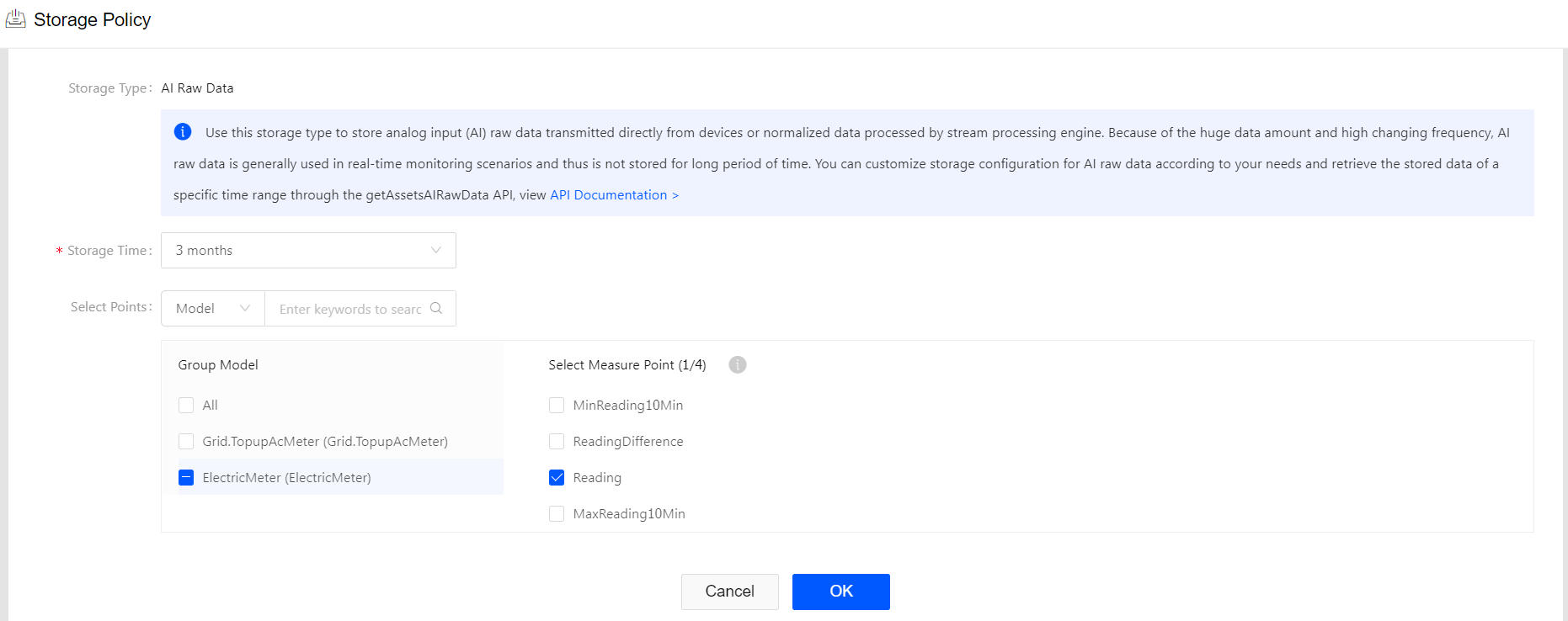
Configuring the AI Normalized Data storage type with the following steps.
Move the cursor to the AI Normalized Data storage type and click the Edit icon to open the Edit Storage Policy page.
From the Storage Time drop-down list, select the storage time for the data (for example, 3 months).
Select the ElectricMeter model and the MaxReading10Min, MinReading10Min, and ReadingDifference measurement points.
Click OK to save the storage policy.
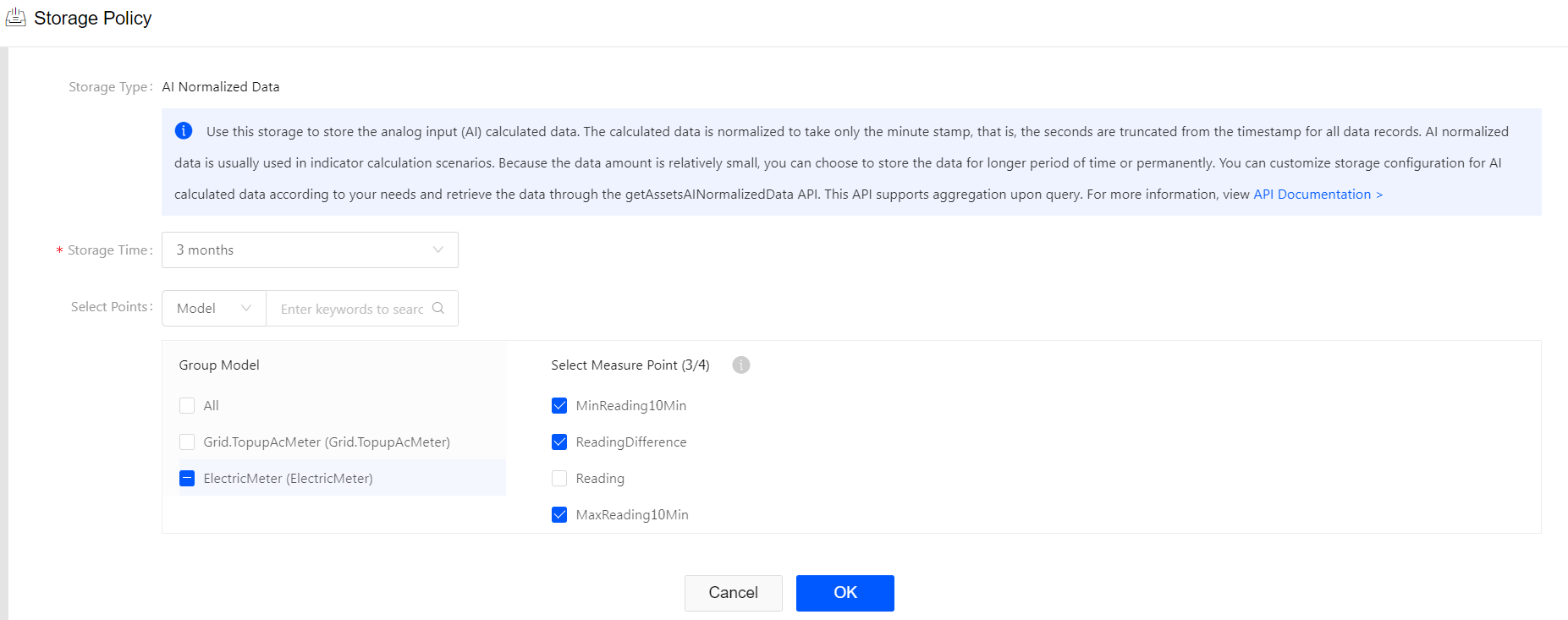
With the storage policies configured, the raw data of the electric meter reading will be stored as AI Raw Data storage type, and the minute-level normalized data output from the stream processing engine will be stored as AI Normalized Data storage type.